Someone new is messaging you on WhatsApp, Instagram or a matrimonial site, and their photo looks almost too good. Before you share personal details or money, take one minute to check where that photo has appeared before.
In short
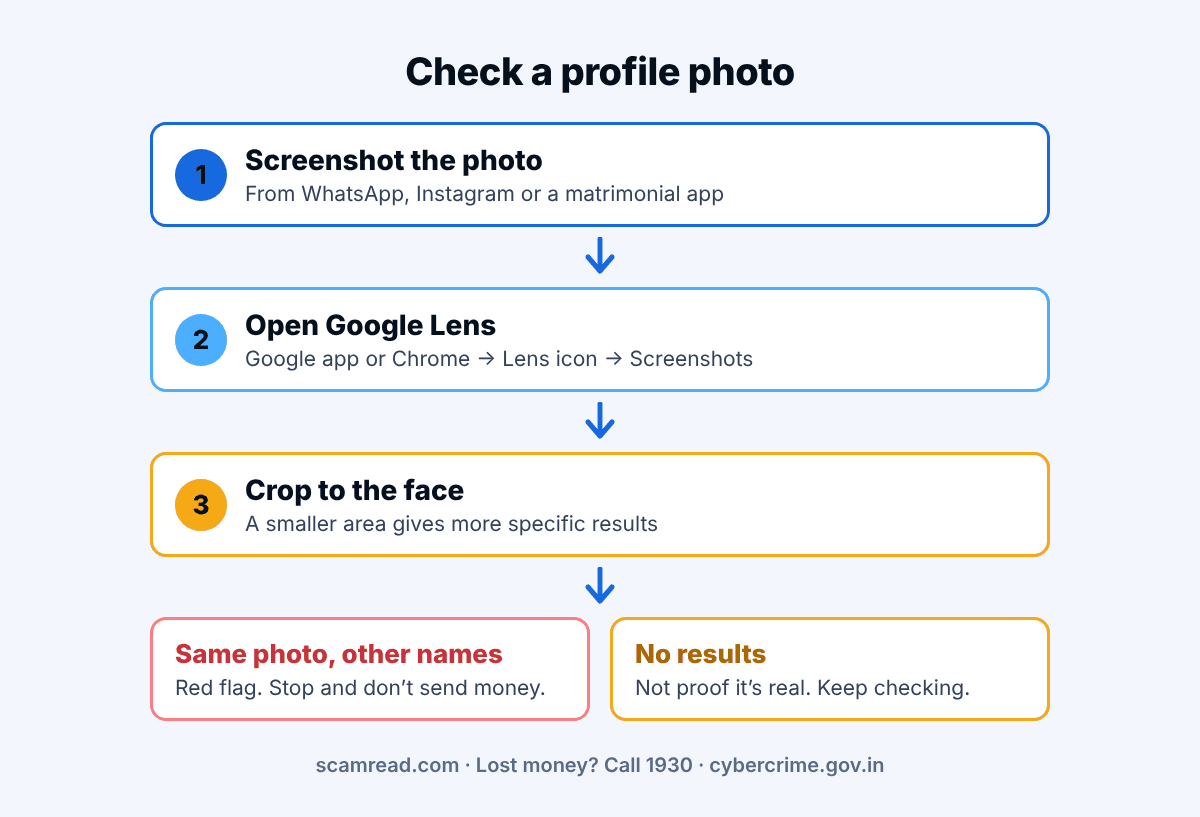
- Take a screenshot of the profile picture.
- Search it with Google Lens (free, built into the Google app and Chrome).
- Same photo under a different name or on a stock-photo or model page? Treat the profile as fake.
- No results does not prove the person is real.
Got a message from this profile asking for money, an investment or a ‘task’? Paste it into the free ScamRead checker. It pulls out the links, numbers and other details in the message and lists any warning signs it spots. A low score does not prove a message is safe, so trust the warning signs in this post too.
Check their messageIn this post
Why check a profile photo
Fake profiles often use photos taken from someone else’s social media, a model’s portfolio or a stock-photo site. Delhi Police’s cyber crime unit warns that fake profiles made by criminals are designed to look extremely attractive. A quick photo check can catch a stolen picture before you get emotionally or financially involved.
Steps on Android (Google Lens)
- Open the profile and take a screenshot of the photo.
- Open the Google app or Chrome.
- In the search bar, tap the Google Lens icon (the camera).
- Under “Screenshots”, pick your screenshot.
- Drag the box so it covers only the face. Google says selecting a smaller area gives more specific results.
- Scroll down to see matching pages.
If the photo is on a website, you can also touch and hold the image in Chrome and tap “Search image with Google Lens”.
On iPhone or a computer
- iPhone: in the Google app, tap the Lens icon, then the photo picker, and choose your screenshot.
- Computer: go to Google Images, click “Search by image” and upload the file. In Chrome you can right-click a picture and choose “Search with Google Lens”.
- TinEye (tineye.com) is a second option. It is free for non-commercial use and says it never saves the images you upload. It finds copies of the same photo, not other photos of the same face.
How to read the results
Example (fake names)
“Priya Sharma, 29, Bengaluru, works in Dubai” on a matrimonial app. The Lens search shows the same photo on a fashion model’s page under another name, and on two other profiles with different names. This is a clear sign the profile is fake.
- Same photo, different names: strong red flag.
- Photo from a stock-image or model website: red flag.
- Photo only on the same person’s older, public accounts with the same name: a good sign, but keep checking.
- No matches at all: not enough to trust. See below.
What a reverse search can’t tell you
- AI-made faces may have no earlier copies online, so they show no matches.
- Photos from private accounts usually don’t show up in search results.
- Scammers may flip, crop or filter a photo to hide matches.
- Google itself notes that images can be edited or made with AI tools, so check other details too.
Use the photo check together with other signs: they avoid video calls, the story keeps changing, or they bring up money, crypto, gifts or ‘investment tips’.
Use it the right way
Reverse image search is for checking a photo someone sent you, before you trust them. Don’t use it, or face-search sites, to track down, expose or harass a private person. Stick to verifying, not hunting.
What to do if it is fake
- Stop replying. Don’t send money, OTPs, documents or private photos.
- Take screenshots of the profile and the chat.
- Report the profile to the app or platform’s help centre, as CERT-In advises.
- If you lost money or are being threatened, call 1930 and report at cybercrime.gov.in.
Report it
Lost money or shared bank details? Call 1930 (national cyber crime helpline) as soon as you can, and report at cybercrime.gov.in.
Related reads: ‘Sorry, wrong number’ messages · How to check if a website is a scam · Job offers from strangers
Photo checked out but their messages still feel off? Run them through the ScamRead checker too. It pulls out the links, numbers and other details in the message and lists any warning signs it spots. A low score does not prove a message is safe, so trust the warning signs in this post too.
Open the free checker